
Support tickets pile up. Your team drowns in noise whilst critical issues slip through the cracks. Customers get angrier. Someone eventually notices the ticket about the payment system being down, but by then you have lost three high-value customers.
What if every incoming ticket was instantly analysed for urgency, sentiment, and business impact, with critical issues automatically routed to your team in Slack before they become fires?
With ETLR, you can build exactly that. No complex integrations, no ML infrastructure to maintain. Just deploy once and let AI handle the triage.
What We’re Building
A workflow that:
- Receives support tickets via webhook from your helpdesk
- Analyses urgency with Gemini 2.5 considering frustration, churn risk, and impact
- Extracts structured data with validated JSON schema output
- Routes critical tickets to Slack with AI reasoning and context
- Logs everything else for normal queue processing
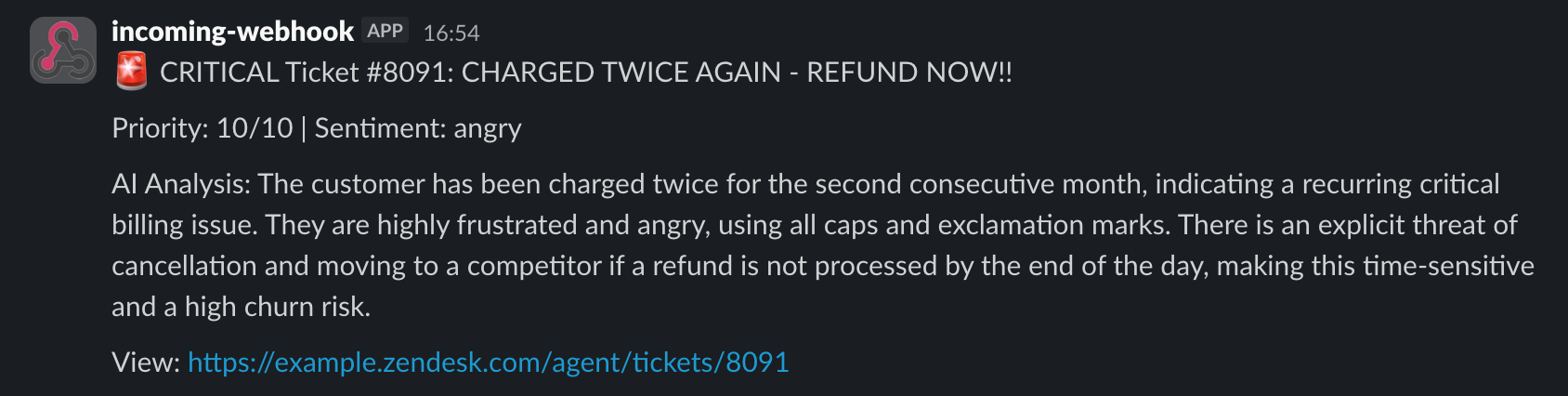
The result? Critical tickets in Slack within seconds:
The Complete Workflow
Here is the full YAML configuration:
workflow:
  name: ticket-triage
  description: AI-powered ticket triage system that analyses urgency and routes critical tickets to Slack
  environment:
    - name: GEMINI_API_KEY
      secret: true
    - name: SLACK_WEBHOOK_URL
      secret: true
  input:
    type: http_webhook
  steps:
    - type: gemini_chat
      api_key: ${env:GEMINI_API_KEY}
      model: gemini-2.5-flash
      system: |
        You are a customer support ticket triage specialist. Analyze support tickets and determine their urgency level.

        Consider these factors when determining urgency:
        - Customer frustration level (angry language, capital letters, exclamation marks)
        - Threat of cancellation or churn
        - Financial impact (billing issues, overcharges, refunds)
        - Repeated issues ("again", "second time", "still not fixed")
        - Time sensitivity ("by end of day", "immediately", "ASAP")
        - Service disruption (account locked, can't access, broken feature)
      prompt: |
        Please analyze this support ticket:

        Subject: ${ticket.subject}

        Description:
        ${ticket.description}

        Created: ${ticket.created_at}
      output_to: ai_response
      temperature: 0.1
      response_format:
        type: json_schema
        json_schema:
          name: ticket_analysis
          schema:
            type: object
            properties:
              urgency:
                type: string
                enum: ["critical", "high", "medium", "low"]
              suggested_priority:
                type: number
                description: 1-10 (10=highest)
              sentiment:
                type: string
                enum: ["angry", "frustrated", "concerned", "neutral", "positive"]
              reasoning:
                type: string
            required: ["urgency", "suggested_priority", "sentiment"]
    - type: if_else
      if:
        conditions:
          - field: ai_response.urgency
            op: eq
            value: critical
        steps:
          - type: print
            template: 🚨 CRITICAL TICKET - Sending to Slack...
          - type: slack_webhook
            webhook_url: ${env:SLACK_WEBHOOK_URL}
            text_template: |
              🚨 CRITICAL Ticket #${ticket.id}: ${ticket.subject}

              Priority: ${ai_response.suggested_priority}/10 | Sentiment: ${ai_response.sentiment}

              AI Analysis: ${ai_response.reasoning}

              View: ${ticket.link}
      else:
        steps:
          - type: print
            template: 'ℹ️ Ticket #${ticket.id} is ${ai_response.urgency} priority - no immediate alert needed'
Let’s break down each section.
How It Works
1. Webhook Input
input:
  type: http_webhook
The workflow listens for incoming HTTP requests from your helpdesk system. Most support platforms (Zendesk, Intercom, Freshdesk, Help Scout) can send webhooks when tickets are created or updated.
2. AI-Powered Urgency Analysis
- type: gemini_chat
  api_key: ${env:GEMINI_API_KEY}
  model: gemini-2.5-flash
  system: |
    You are a customer support ticket triage specialist. Analyze support tickets and determine their urgency level.

    Consider these factors when determining urgency:
    - Customer frustration level (angry language, capital letters, exclamation marks)
    - Threat of cancellation or churn
    - Financial impact (billing issues, overcharges, refunds)
    - Repeated issues ("again", "second time", "still not fixed")
    - Time sensitivity ("by end of day", "immediately", "ASAP")
    - Service disruption (account locked, can't access, broken feature)
  prompt: |
    Please analyze this support ticket:

    Subject: ${ticket.subject}

    Description:
    ${ticket.description}

    Created: ${ticket.created_at}
  output_to: ai_response
  temperature: 0.1
The Gemini chat step analyses the ticket with a specialist system prompt. We use a low temperature (0.1) for consistent, deterministic classifications rather than creative responses.
The prompt includes multiple urgency indicators:
- Emotional signals: Angry language, capitals, repeated punctuation
- Business risk: Churn threats, billing disputes
- Time pressure: “ASAP”, “urgent”, “immediately”
- Pattern recognition: “Still broken”, “third time”, “not fixed”
3. Structured JSON Output
response_format:
  type: json_schema
  json_schema:
    name: ticket_analysis
    schema:
      type: object
      properties:
        urgency:
          type: string
          enum: ["critical", "high", "medium", "low"]
        suggested_priority:
          type: number
          description: 1-10 (10=highest)
        sentiment:
          type: string
          enum: ["angry", "frustrated", "concerned", "neutral", "positive"]
        reasoning:
          type: string
      required: ["urgency", "suggested_priority", "sentiment"]
This is where ETLR shines. Instead of parsing freeform AI responses, we enforce a strict JSON schema. The AI must return:
- urgency: One of four levels
- suggested_priority: Numerical score 1-10
- sentiment: Customer emotional state
- reasoning: Explanation for the classification
No parsing. No validation. Just reliable, structured data you can route on.
4. Conditional Routing
- type: if_else
  if:
    conditions:
      - field: ai_response.urgency
        op: eq
        value: critical
    steps:
      - type: print
        template: 🚨 CRITICAL TICKET - Sending to Slack...
      - type: slack_webhook
        webhook_url: ${env:SLACK_WEBHOOK_URL}
        text_template: |
          🚨 CRITICAL Ticket #${ticket.id}: ${ticket.subject}

          Priority: ${ai_response.suggested_priority}/10 | Sentiment: ${ai_response.sentiment}

          AI Analysis: ${ai_response.reasoning}

          View: ${ticket.link}
  else:
    steps:
      - type: print
        template: 'ℹ️ Ticket #${ticket.id} is ${ai_response.urgency} priority - no immediate alert needed'
The if_else step checks the AI’s urgency classification. Critical tickets trigger an immediate Slack alert with context. Everything else gets logged for normal queue processing.
The Workflow Graph
Here is how the workflow looks in the ETLR dashboard:
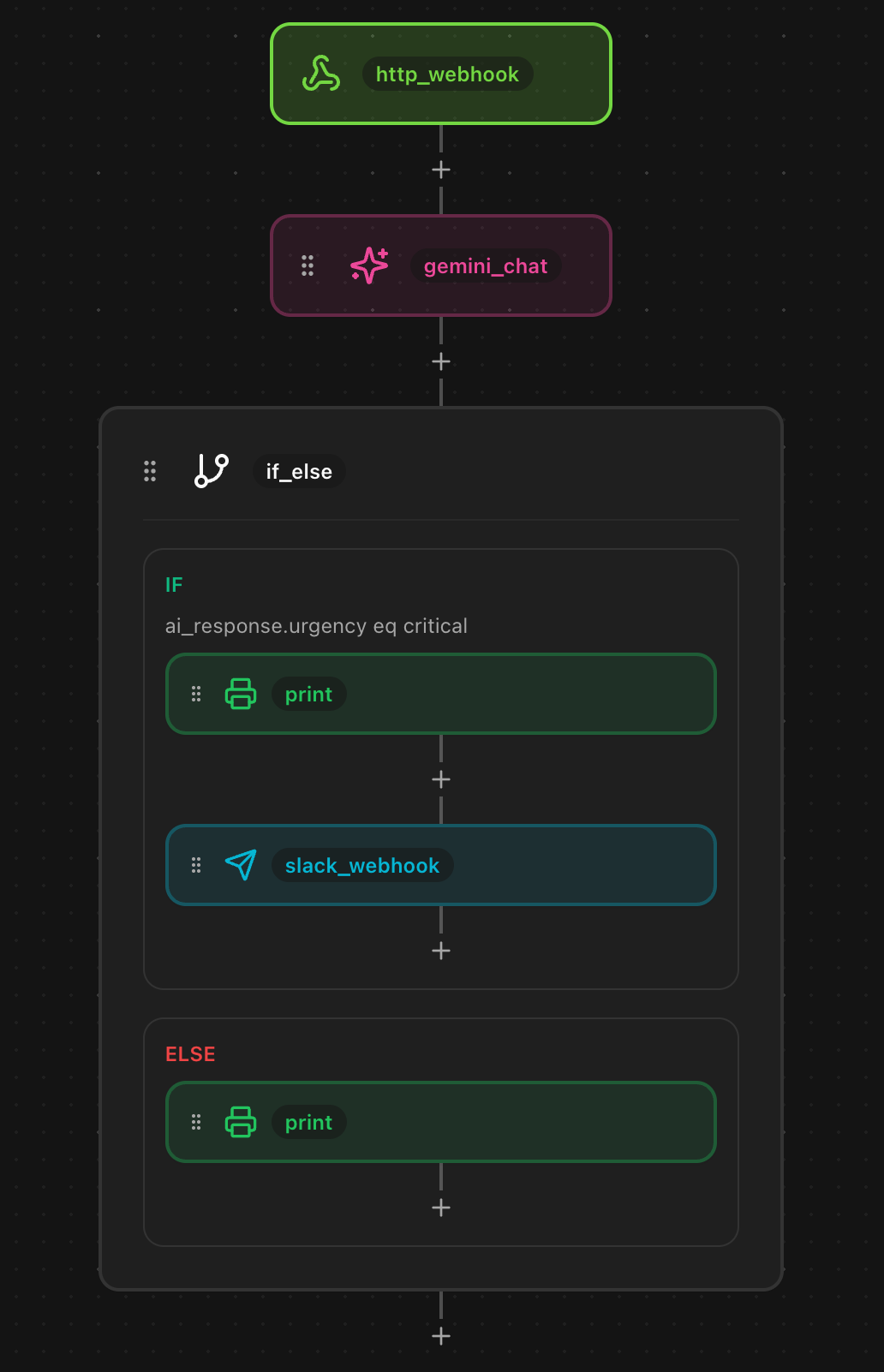
The if/else branching is clearly visible, showing how critical tickets take the Slack path whilst others get logged.
Environment Variables
The workflow uses two secrets:
- GEMINI_API_KEY: Your Google AI API key for Gemini
- SLACK_WEBHOOK_URL: The webhook URL for your Slack channel
Set these in the ETLR dashboard under Environment Variables and mark them as secrets so they are encrypted at rest.
Why This Works
Traditional ticket triage fails because:
- Rules are brittle: “If subject contains ‘urgent’” misses 90% of actual urgent tickets
- Keywords are gamed: Customers learn to say “urgent” on everything
- Context is lost: A billing issue from a $50k customer is different from a free user
- Manual triage is slow: By the time someone reads it, the damage is done
AI triage solves this by understanding:
- Semantic meaning: “I’m cancelling if this isn’t fixed” is urgent even without the word “urgent”
- Emotional tone: Capital letters and exclamation marks signal frustration
- Implicit context: “This is the third time” indicates a pattern
- Business impact: Payment failures are always critical
Customisation Ideas
This is just the starting point. Here are some ways to extend the workflow:
Route to Different Channels
Send different urgency levels to different Slack channels:
- type: if_else
  if:
    conditions:
      - field: ai_response.urgency
        op: eq
        value: critical
    steps:
      - type: slack_webhook
        webhook_url: ${env:CRITICAL_SLACK}
        text_template: "🚨 CRITICAL: ${ticket.subject}"
  else_if:
    - conditions:
        - field: ai_response.urgency
          op: eq
          value: high
      steps:
        - type: slack_webhook
          webhook_url: ${env:HIGH_PRIORITY_SLACK}
          text_template: "⚠️ HIGH: ${ticket.subject}"
Auto-Reply to Low Priority
Acknowledge low-priority tickets immediately:
- type: if_else
  if:
    conditions:
      - field: ai_response.urgency
        op: eq
        value: low
    steps:
      - type: http_call
        url: https://api.yourhelp.desk/tickets/${ticket.id}/reply
        method: POST
        headers:
          Authorization: "Bearer ${env:HELPDESK_API_KEY}"
        body:
          message: "Thanks for reaching out! We'll respond within 24 hours."
Enrich with Customer Data
Look up customer subscription level and adjust priority:
- type: stripe
  api_key: ${env:STRIPE_API_KEY}
  operation: retrieve
  object_type: customers
  object_id: ${ticket.customer_id}
  expand:
    - subscriptions
  output_to: customer_data

- type: if_else
  if:
    conditions:
      - field: customer_data.subscriptions.data[0].plan.nickname
        op: in
        value: ["Enterprise", "Premium"]
      - field: ai_response.urgency
        op: in
        value: ["critical", "high"]
    steps:
      - type: slack_webhook
        webhook_url: ${env:VIP_SLACK}
        text_template: "💎 ${customer_data.subscriptions.data[0].plan.nickname} Customer - ${ticket.subject}"
Track Triage Accuracy
Log AI decisions to your analytics platform:
- type: segment
  write_key: ${env:SEGMENT_WRITE_KEY}
  operation: track
  user_id: ${ticket.customer_id}
  event: Ticket Triaged
  properties:
    ticket_id: ${ticket.id}
    ai_urgency: ${ai_response.urgency}
    ai_sentiment: ${ai_response.sentiment}
    suggested_priority: ${ai_response.suggested_priority}
  output_to: segment_result
Use Multiple AI Models
Compare classifications from different models:
- type: openai_completion
  api_key: ${env:OPENAI_API_KEY}
  model: gpt-4o
  system: "Analyze this support ticket for urgency..."
  prompt: "${ticket.subject} - ${ticket.description}"
  output_to: gpt_analysis

- type: anthropic_chat
  api_key: ${env:ANTHROPIC_API_KEY}
  model: claude-3-5-sonnet
  system: "Analyze this support ticket for urgency..."
  prompt: "${ticket.subject} - ${ticket.description}"
  output_to: claude_analysis

- type: if_else
  if:
    conditions:
      - field: gpt_analysis.urgency
        op: eq
        value: critical
      - field: claude_analysis.urgency
        op: eq
        value: critical
    steps:
      - type: slack_webhook
        text_template: "🚨 CONSENSUS CRITICAL (both models agree): ${ticket.subject}"
Integrating with Your Helpdesk
Most support platforms support webhooks. Here is how to connect them:
Zendesk
- Go to Admin → Extensions → Webhooks
- Create webhook pointing to your ETLR workflow URL
- Trigger on “Ticket Created” events
- Map ticket fields to JSON payload
Intercom
- Go to Settings → Webhooks
- Add webhook with your ETLR URL
- Subscribe to
conversation.createdtopic - Test with a sample ticket
Freshdesk
- Go to Admin → Workflows → Automations
- Create rule: “When ticket is created”
- Action: “Trigger webhook” with your ETLR URL
- Include ticket details in payload
Custom Integration
If your system does not have webhooks, poll with a cron workflow:
input:
  type: cron
  cron: "*/5 * * * *"  # Every 5 minutes
steps:
  - type: http_call
    url: https://api.yourhelp.desk/tickets?status=new
    output_to: new_tickets
  - type: for_each
    input_from: new_tickets
    steps:
      # ... same AI triage logic
Deploying the Workflow
Save the YAML as ticket-triage.yaml and deploy with one command:
etlr deploy ticket-triage.yamlThat is it. Every new support ticket will be analysed by AI within seconds, with critical issues routed directly to your team.
Ready to stop missing critical tickets? Get started with ETLR or explore the documentation.
Have questions? Join our Discord community or check out more workflow examples.